WhatsApp
Menu Menu Close
blog

Visual Status Indicators: Why Numbers Alone Don't Tell You What's Wrong

Visual Status Indicators: Why Numbers Alone Don't Tell You What's Wrong

Dashboard shows: 847 orders today.

Manager stares at it.

Is 847 good? Bad? Normal? Alarming?

He doesn't know. He needs to check last week's numbers. Compare mentally. Calculate percentage change.

By the me he figures out 847 is 23% below normal and there's a problem, it's been 2 hours.

The dashboard showed the data. It didn't show the meaning.

The Numbers Problem

Raw numbers require interpreta on.

"23 pending tasks" - Is that normal or a backlog crisis?

"94% delivery rate" - Is that good or below target?

"₹4.2 lakhs revenue" - Celebra ng or panicking?

Without context, numbers are just numbers. The human brain has to do the work of:

        Remembering what "normal" is

        Comparing to targets

        Calcula ng devia ons

        Deciding if ac on is needed

This mental work takes me. And humans are inconsistent at it, especially when red or distracted.

What Visual Status Adds

Visual indicators do the interpreta on for you:

Color coding:

        Green: On target, healthy, no ac on needed


-        Yellow/Orange: Warning, approaching problem, a en on needed

        Red: Problem, below target, ac on required

Icons and symbols:

        ↑ Trending up

        ↓ Trending down

        ✓ Complete/Good

        ⚠ Warning

        ✗ Problem

Progress indicators:

        Bars showing percentage toward target

        Gauges showing current vs. acceptable range

        Sparklines showing trend over me

With these addi ons, a manager glances at the dashboard and instantly knows: "Red on delivery rate. Problem. Look into it."

No mental math. No comparison to last week. Instant understanding.

The 3-Second Test

Good status design passes the 3-second test:

A manager glances at the screen for 3 seconds.

They should immediately know:

        What needs a en on (red items)

        What's fine (green items)

        What's trending concerning (yellow items)

If they need more than 3 seconds to understand the status, the visualiza on is failing.

Numbers are for detailed analysis. Colors and icons are for instant understanding.

A Real Scenario

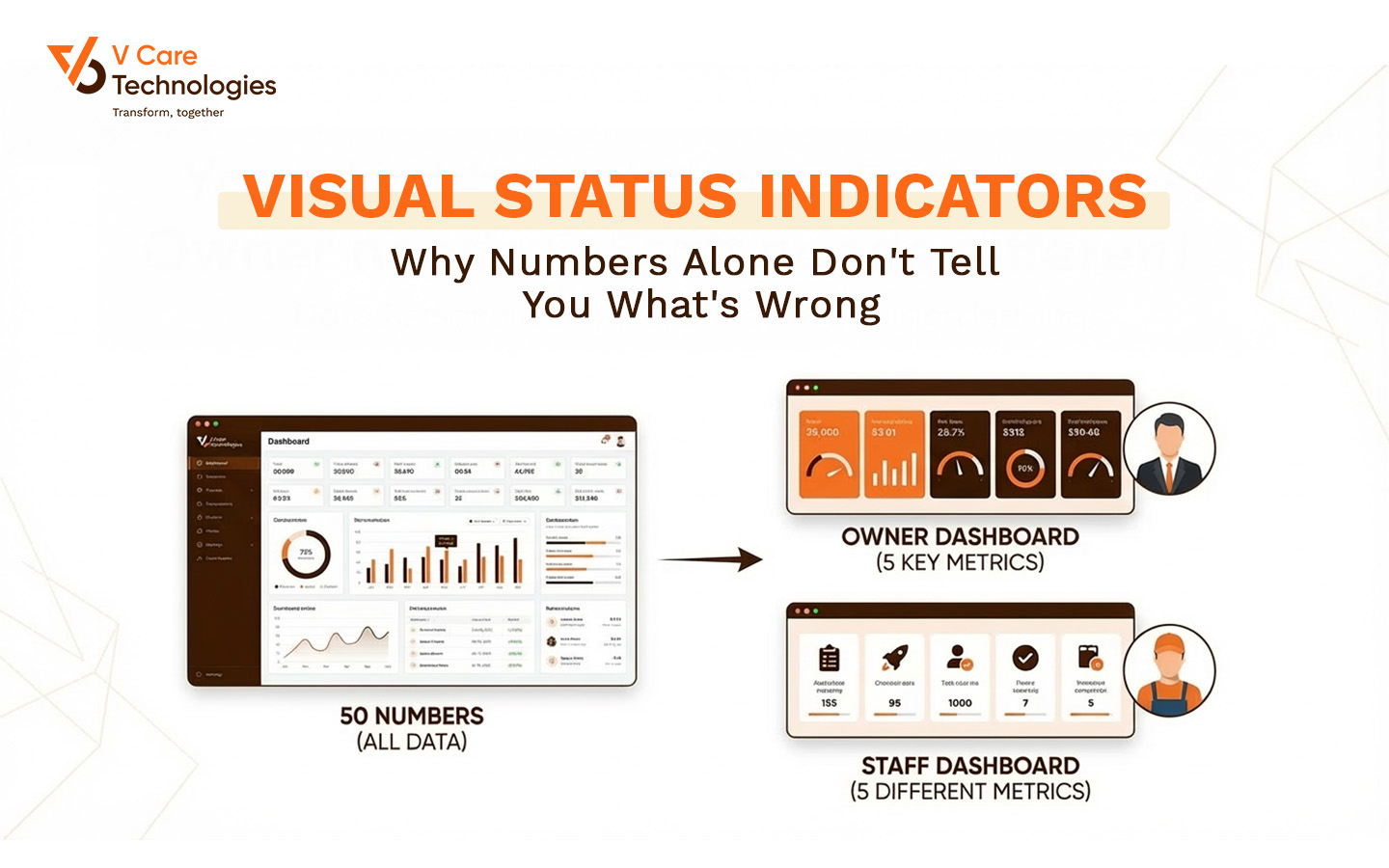
A logis cs company dashboard showed 15 numbers: orders, deliveries, returns, pending, delays, etc.

Managers would look at it and say: "I don't know what I'm looking at."

They'd export to Excel. Create their own comparisons. Make their own red/yellow/green highlights.

The dashboard became a data source, not a decision tool.

Redesign added:

        Color-coded cards: Green if metric is healthy, red if concerning

        Comparison arrows: ↑12% vs yesterday (green) or ↓8% vs target (red)

        Excep on highligh ng: Only problema c items draw a en on

        Threshold-based alerts: Automa c color change when metrics cross defined boundaries

Result: Managers now spot problems in seconds instead of minutes. The dashboard became a decision tool again.

Se         ng the Right Thresholds

Visual status is only as good as its thresholds.

Define clear boundaries:

        Green: Above 95% delivery rate

        Yellow: 90-95% delivery rate

        Red: Below 90% delivery rate

Make thresholds adjustable: What's "good" changes over me. Allow easy threshold adjustment.

Don't over-alert: If everything is always yellow or red, the colors lose meaning. Reserve red for genuine problems.

Consider direc on: 92% that was 88% yesterday (improving) is different from 92% that was 97% yesterday (declining).

Common Mistakes

Too many colors: Red, orange, yellow, lime, green, teal, blue... confusion. S ck to 3-4 states maximum.

Color as only indicator: Color-blind users can't dis nguish red/green. Add icons or pa erns as secondary indicators.

Sta c thresholds for seasonal data: 500 orders might be great in slow season and terrible in peak. Context ma ers.

No explana on of colors: Users should know what triggers red vs. green. Make the logic visible.

Everything is urgent: If every metric is red, nothing is red. Priori ze what truly ma ers.

Key Takeaways

        Raw numbers require mental interpreta on - slow and inconsistent

        Visual status (color, icons, trends) provides instant understanding

The 3-second test: Can you understand status at a glance?

        Set clear thresholds for what triggers each status level

        Don't over-alert - reserve red for genuine problems

The Botom Line

Your dashboard shows data. That's not enough.

Managers don't need to know the numbers. They need to know: "Is something wrong? Where? How urgent?"

Color coding, icons, and visual indicators answer these ques ons instantly.

Stop making humans do interpreta on work. Let the design do it.

Show meaning, not just numbers. 

        Remembering what "normal" is

        Comparing to targets

        Calcula ng devia ons

        Deciding if ac on is needed

This mental work takes me. And humans are inconsistent at it, especially when red or distracted.

What Visual Status Adds

Visual indicators do the interpreta on for you:

Color coding:

        Green: On target, healthy, no ac on needed


-        Yellow/Orange: Warning, approaching problem, a en on needed

        Red: Problem, below target, ac on required

Icons and symbols:

        ↑ Trending up

        ↓ Trending down

        ✓ Complete/Good

        ⚠ Warning

        ✗ Problem

Progress indicators:

        Bars showing percentage toward target

        Gauges showing current vs. acceptable range

        Sparklines showing trend over me

With these addi ons, a manager glances at the dashboard and instantly knows: "Red on delivery rate. Problem. Look into it."

No mental math. No comparison to last week. Instant understanding.

The 3-Second Test

Good status design passes the 3-second test:

A manager glances at the screen for 3 seconds.

They should immediately know:

        What needs a en on (red items)

        What's fine (green items)

        What's trending concerning (yellow items)

If they need more than 3 seconds to understand the status, the visualiza on is failing.

Numbers are for detailed analysis. Colors and icons are for instant understanding.

A Real Scenario

A logis cs company dashboard showed 15 numbers: orders, deliveries, returns, pending, delays, etc.

Managers would look at it and say: "I don't know what I'm looking at."

They'd export to Excel. Create their own comparisons. Make their own red/yellow/green highlights.

The dashboard became a data source, not a decision tool.

Redesign added:

        Color-coded cards: Green if metric is healthy, red if concerning

        Comparison arrows: ↑12% vs yesterday (green) or ↓8% vs target (red)

        Excep on highligh ng: Only problema c items draw a en on

        Threshold-based alerts: Automa c color change when metrics cross defined boundaries

Result: Managers now spot problems in seconds instead of minutes. The dashboard became a decision tool again.

Se         ng the Right Thresholds

Visual status is only as good as its thresholds.

Define clear boundaries:

        Green: Above 95% delivery rate

        Yellow: 90-95% delivery rate

        Red: Below 90% delivery rate

Make thresholds adjustable: What's "good" changes over me. Allow easy threshold adjustment.

Don't over-alert: If everything is always yellow or red, the colors lose meaning. Reserve red for genuine problems.

Consider direc on: 92% that was 88% yesterday (improving) is different from 92% that was 97% yesterday (declining).

Common Mistakes

Too many colors: Red, orange, yellow, lime, green, teal, blue... confusion. S ck to 3-4 states maximum.

Color as only indicator: Color-blind users can't dis nguish red/green. Add icons or pa erns as secondary indicators.

Sta c thresholds for seasonal data: 500 orders might be great in slow season and terrible in peak. Context ma ers.

No explana on of colors: Users should know what triggers red vs. green. Make the logic visible.

Everything is urgent: If every metric is red, nothing is red. Priori ze what truly ma ers.

Key Takeaways

        Raw numbers require mental interpreta on - slow and inconsistent

        Visual status (color, icons, trends) provides instant understanding

The 3-second test: Can you understand status at a glance?

        Set clear thresholds for what triggers each status level

        Don't over-alert - reserve red for genuine problems

The Botom Line

Your dashboard shows data. That's not enough.

Managers don't need to know the numbers. They need to know: "Is something wrong? Where? How urgent?"

Color coding, icons, and visual indicators answer these ques ons instantly.

Stop making humans do interpreta on work. Let the design do it.

Show meaning, not just numbers. 

-->
Author: Murtuza Tarwala

2026-01-05

Other Blog Posts

E-Commerce Marketplace Development for Business Success Online
Maximize Mobile App Performance: The Ultimate Guide
Mastering the App Development Roadmap